
Install guide
How to run AiyoPerps headless with Docker
If you only need the local REST API and MCP endpoint without the desktop GUI, this guide shows how to launch AiyoPerps in headless mode with Docker.
Requirements
- Docker installed locally
- Local port
5078available - A use case for REST API or MCP access
1Start the container with docker run
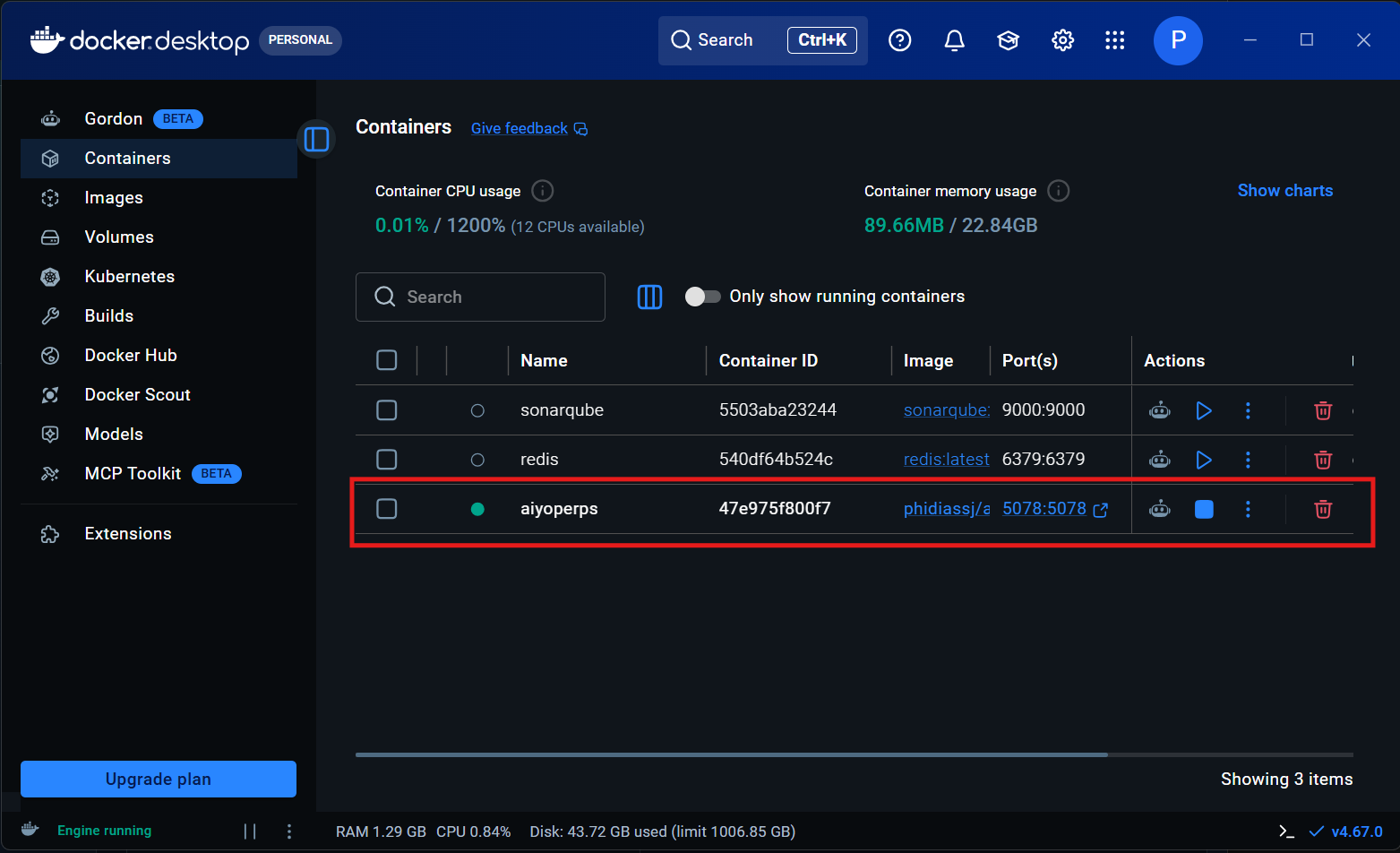
Use Docker CLI to launch the latest image and map local port 5078 into the container. You can also search for AiyoPerps on Docker Hub first.
docker run --rm --name aiyoperps -p 5078:5078 phidiassj/aiyoperps:latest
2Confirm container and port status
Make sure the container is running and that local port 5078 is mapped correctly.
docker ps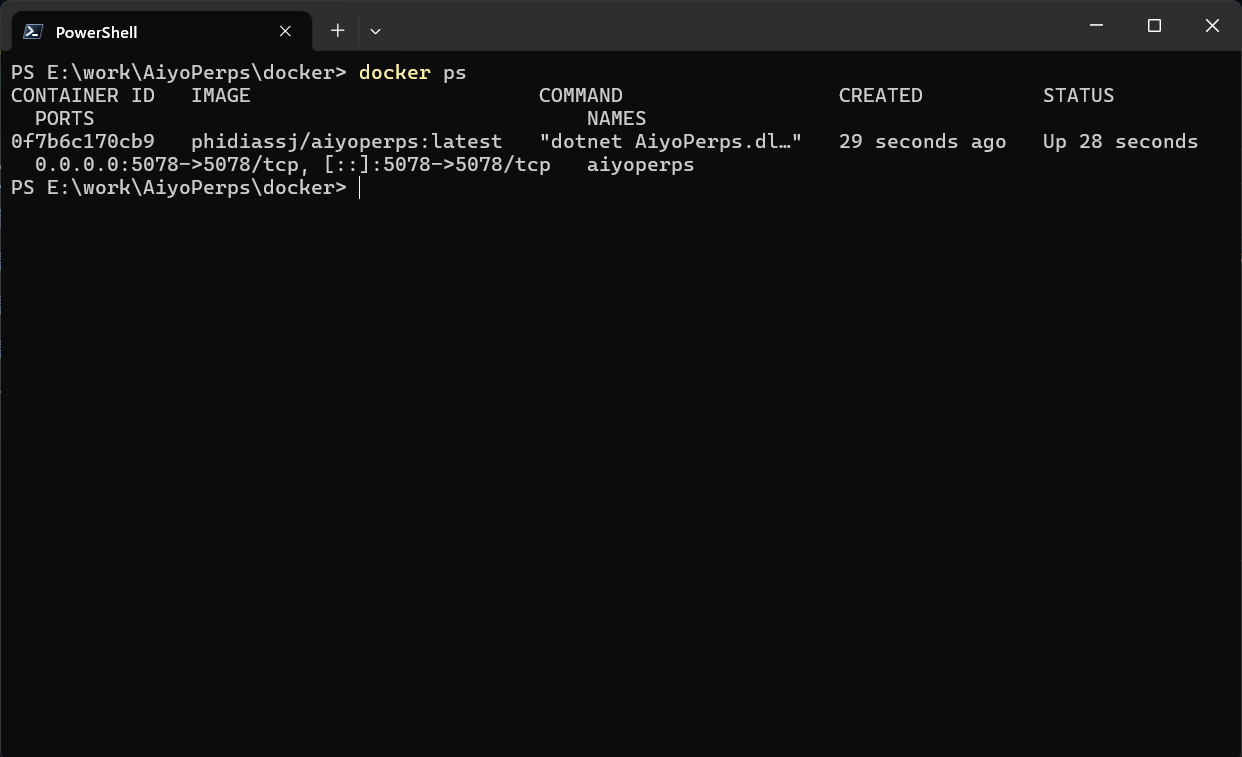
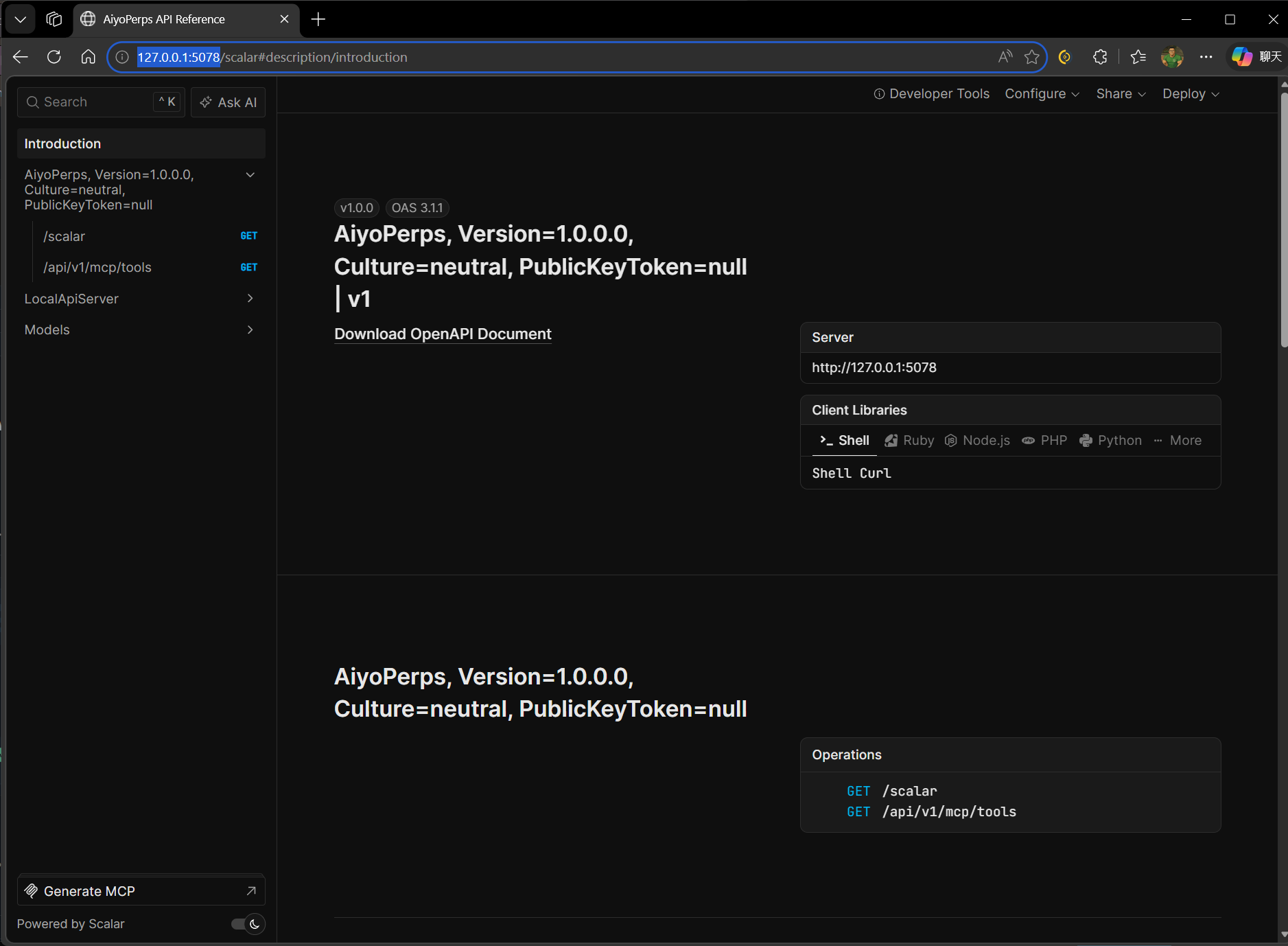
3Verify OpenAPI or MCP access
Open the OpenAPI UI in a browser or test the MCP endpoint directly. If the page opens, the headless service is running correctly.
Next step
Open the MCP and REST API handbook
After headless startup, the next step is usually mapping MCP tool names and API endpoints into your AI agent prompts.
Open MCP and REST API handbookNeed the desktop UI later?
If you later need manual charting or direct desktop interaction, switch to the Windows or Linux installation flow.
View Windows installation